Adding People
Most likely you (the site administrator) will not be the only person working on your site. As the Administrator, you can add people to your site and assign them a role that allows them to perform specific tasks on your site. To access commands to manage people, click on People in the Administrator’s toolbar.
Add CAS User
Anyone with a Yale NetID can be granted access to your site and, as the Administrator, you can easily add them to your site using their NetID.
Important Note: When people are added via CAS, their full name, phone, title, address, and email are pulled from the HR database.
- Click People - >Add CAS User
- Enter the NetID of the user you want to add and click the Create new account button.
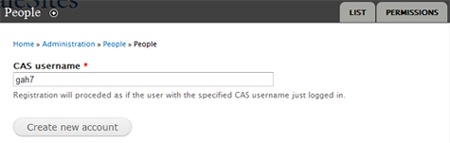
- Click on the List tab, and the person shows up on your list of people.

- Click on the edit tab in the row of the person added and assign a role based on what you want them to do on your site.
Adding Multiple CAS Users
As of June 20, 2014, you can now add multiple NetIDs to make it easier to populate your people listing. If your site was created prior to June 20, 2014 and you would like this feature, please complete the Refresh my site form.
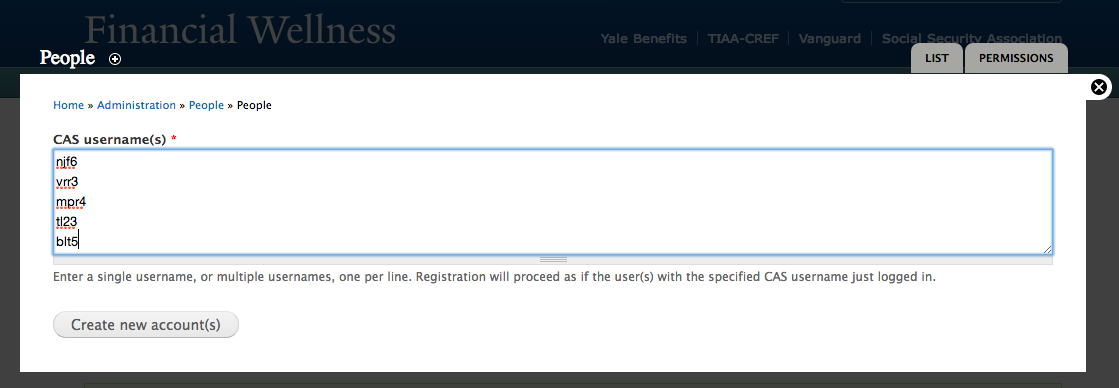
- Select People > Add CAS User(s)
- The field displays as a Text Area box rather then one line Text field.
- Enter the NetIDs one on each line.
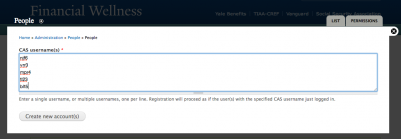
- Click on Create new accounts.
- Each person will be listed on the resulting screen with a link to the person’s account information.
Adding Roles to Multiple People
When accounts are created initially, they are assigned an Authenticated User Role. If you have a custom role, you can change it for more than one person in the following way:
- Click on People in the Toolbar.
- Select the people you want to assign the role by clicking on the check box to the left of their names.
- In the Update Options section above the people listing select the role you want to add.
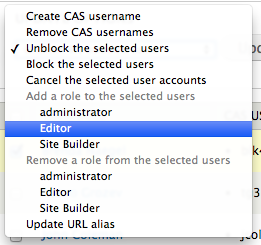
- Click on the Update button and all the selected people are assigned the selected role.
Allow People to Update Personal Account Information
If you would like faculty or staff to complete their own profile, you can ask them to login to the site and update their information in the following way*:
- Email the people and request they access your site through following URL: yoursitename.yale.edu/cas (replacing yoursitename with the name of your department or organization).
- Once they login to the site, they will see the User Menu under the right navigation of the home page:
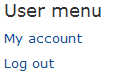
- Instruct them to click on My account and complete the form that follows. Keep in mind that the first name, last name, phone, address, and title auto-populate from the HR database when someone logs in. This can be adjusted and additional fields can be added to customize the information you capture.
* You must have the Yale People Listing Feature enabled and the People Type selected in order for these people to show up in an organized list.
Changing Roles
Once you have added a person to your site, you can assign and/or change roles for anyone logged into your site:
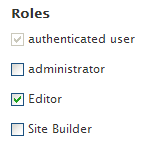 Click People in the Administrator’s toolbar and then the edit tab in the row of the person you want to assign/change the role.
- Change the role by clicking on the appropriate radio button/check box.
Blocking a User
 There may be times when you want to block someone from your site because they have left the University or are exhibiting behavior that warrants removal (spamming a forum or posting inappropriate comments, for example). You can easily block them by clicking on the Block radio button on their profile page: